

LEENORA WhatsApp
← All workOur product · in testingIn testing

Our product · LEENORA · Sales and customer service for online stores

One inbox where AI answers and people approve

For online brands that sell through chat. It is built to put Messenger, Instagram and WhatsApp conversations in one inbox, let tested AI agents answer the routine questions, and keep a person confirming every order.

4chat channels in one inbox
4AI agent roles
8team roles

Watch

The project in one minute

Before

The problem

Online brands answer customers in several inboxes at once (Messenger, Instagram, WhatsApp), and the people answering have no order, stock or customer history in front of them.

Simple questions wait for a person, complaints get lost between team members, and the owner cannot see why a sale stopped or which product is causing returns.

This is the problem the product was designed to fix. It is not a measured study of a client.

What we built

The answer

A web application that works from a 375 px phone up to a desktop screen and can be installed as a PWA. The interface is Arabic first, right-to-left, with English available, in light and dark themes.

It has 24 modules: the unified inbox, tickets and the team queue, customers and the sales pipeline, products and orders from Shopify and EasyOrders, AI agents on the Claude API, knowledge and brand voice, automations, an assistant and an owner copilot, analytics, campaign insight, plans, and privacy and security.

It is used by the brand's owner, managers, sales and support staff, analysts and viewers, each with their own permissions. LEENORA's operator role sees each brand as totals only and cannot read its conversations.

The product is in testing and is not live with real customers. Channel and store connections run in demo mode and have not been checked on live accounts, TikTok is a demo adapter, and email sending and online payment are not connected. The screens show a demo store, Vego Store, with demo customers and conversations.

In numbers

The project at a glance

4chat channels in one inbox
4AI agents: sales, support, after-sales and general
80%test score an agent needs before it replies alone
11automation triggers
8team roles
2languages, Arabic and English

What's inside

Every feature

65 features in 12 groups

Unified inbox6
  • One inbox for all channelsMessenger, Instagram, WhatsApp and TikTok conversations sit in one list with filters, so nobody switches between four apps to answer customers (demo mode only so far, and TikTok is a demo adapter).
  • Conversation with customer panelThe chat opens next to the customer's orders, stage, score and history, so the person answering already knows who they are talking to.
  • Who is answeringEach conversation shows its owner (the AI, a named person, or nobody) and the AI stays silent while a person owns it, so a customer never gets two different answers.
  • Internal notesA note on the conversation that the customer never sees, so hand-overs keep their context.
  • Add a product to a replyThe employee picks a product from the catalogue with its price and stock, so every reply carries the correct price and availability.
  • Reply suggestionsThe AI drafts a private suggestion the employee can use or dismiss, so replies are faster and still checked by a person.
Tickets and team queue5
  • Hand-over from AI to a personWhen the AI escalates, the ticket carries what the customer wants, their mood, the products discussed and the suggested next step, so the customer is not asked the same questions twice.
  • Team queueThe manager sees each person's load and every open ticket, filters by status and reassigns, so it is clear who is overloaded right now.
  • Claim the next ticketOne button takes the next waiting ticket, and if two people press together only one gets it, so no two people work the same customer.
  • Automatic assignmentTickets go to available people by the rule the manager sets, so work is shared fairly without a dispatcher.
  • SLA timersLate first responses are flagged, so late customers are visible before they complain.
AI agents8
  • AI agents by jobSales, support, after-sales and general agents each have their own instructions, allowed tools, channels and hours, so routine questions can be answered at any hour (needs a Claude API key).
  • Test before auto-replyThe simulator runs a set of test conversations, and auto-reply needs 80% or more with no critical failure and a new run after any change, so an untested AI cannot talk to customers.
  • Reply supervisorA second model reviews each drafted reply against the store's policies and decides to send it, rewrite it once or hand it to the team, so wrong promises are caught before the customer sees them (tested with a scripted model, not run on real AI replies yet).
  • Agent modesEach agent can be off, in shadow, suggest only, auto-reply or hybrid, so the owner chooses how much the AI is trusted.
  • Order lookup by the AIThe AI finds an order by number, phone or the name it was placed under, so customers get their order status without waiting for a person.
  • Upset-customer ruleThe AI acknowledges and apologises once before asking for details, then hands complaints to a person, so an angry customer is not met with a form.
  • Try Leenora (playground)The owner chats with an agent as if they were a customer, without sending anything, to see how the AI answers before customers do.
  • AI usage and budgetA daily and monthly budget, usage per model and a connection test, so AI cost has a ceiling.
Training and knowledge3
  • Approved knowledgeShipping, returns, payment, sizing and offers live as entries, the AI uses only approved ones and every edit makes a new version, so the AI says only what the brand approved.
  • Unanswered questionsQuestions the AI could not answer are collected with how often they came up, and the owner answers once and it becomes knowledge (tested with a scripted model, not run on real AI replies yet).
  • Brand voiceTone, greeting, banned phrases, business type and whether the AI says it is an AI are set in one page, so replies sound like the brand.
Customers and sales pipeline5
  • One profile per customerChannels, orders, notes, follow-up tasks, consents and a timeline are in one page, so the full story of a customer is in one place.
  • Pipeline boardLeads move through stages, an order moves the lead to Won automatically and lost leads get a reason, so the owner sees how many sales are in progress and where they stall.
  • Customer list and searchAll customers with segments and filters, so any customer is found in seconds.
  • Merge and undo mergeTwo profiles of the same person can be joined and the merge can be reversed, so there are no duplicate customers.
  • Follow-up tasksA reminder tied to a customer, so promised call-backs are not forgotten.
Products and orders5
  • AI order drafts with human approvalThe AI prepares the order and a person confirms it before it is placed, so the AI saves the typing and a person keeps the final say.
  • Store connectionShopify and EasyOrders catalogue, stock and orders sync, so the team and the AI answer from the store's own catalogue (demo mode only so far).
  • Products and stockEvery product with its variants, price and stock, filtered by stock level, so nobody promises a size that ran out.
  • Orders listOrders with status filters, so order questions are answered without opening the store admin.
  • Returns and exchangesRequested from the customer profile and decided by a manager, so every return has a reason and a decision on record.
Analytics and insight8
  • Why sales stoppedThe system reads conversations that went quiet and groups lost sales by reason, such as price, out of stock, shipping or no response, with the chats behind each number (tested with a scripted model, not run on real AI replies yet).
  • AnalyticsResponse times, AI versus human handling and conversion, each metric with its definition and a CSV export, so the owner can check the numbers.
  • Quality reviews and coachingSampled conversations are reviewed and staff can appeal, so quality is measured the same way for everyone.
  • My performanceEach employee sees their own 30-day numbers, so people know where they stand.
  • Product problems from customersComplaints are grouped by product and issue, such as size, quality, damaged or wrong item, so bad batches show up early.
  • Campaign attributionThe system records which ad a conversation came from, so the owner sees which ads start conversations that buy.
  • Opportunity radarProducts and options customers ask for that are not in stock, so the store sees the demand it is missing.
  • Owner dashboardToday's work, alerts and totals in one page, so the state of the business is clear at a glance.
Automations3
  • Rules from templates11 triggers such as new inquiry, customer asks for a person, late shipping and low stock, each rule with test, draft and active modes, so follow-ups happen without someone remembering.
  • Quiet hours and consentRules respect quiet hours, customer consent and each platform's messaging window, so no message goes out at 3 am or to people who did not agree.
  • Emergency stopOne switch halts every automation, so a mistake can be stopped at once.
Assistant and copilot4
  • Leenora assistantAnswers questions about your own work from the data your role can see, with links to the records, so staff ask instead of searching.
  • "Show me"Opens the right page and highlights the control without using any AI credit, so new staff learn the system without training sessions.
  • Today and remindersOpen and late tickets, follow-ups and personal reminders, so each person starts the day with a list.
  • Owner copilotBusiness questions asked in plain language, and any action it proposes needs confirmation, so the owner gets answers without building a report (needs a Claude API key).
Sign-in, team and roles7
  • Sign-up, email verification, organisation setupCreates an account and a workspace with its currency and time zone, so a brand can start on its own without an installer.
  • Two-step sign-in and account lockA code from an authenticator app, and the account locks for 15 minutes after 5 wrong passwords, so a stolen password is not enough to get in.
  • Team invitesInvites go by email, work once, expire and are limited by plan seats, so only invited people join.
  • Roles and permissions7 ready roles with a permission matrix the owner can adjust, so each person sees only what their job needs.
  • Custom rolesA role with a name and permissions the owner picks, so it fits how each brand splits its team.
  • Presence statusAvailable, busy, away or offline, and only available people get new tickets, so work goes to whoever is at their desk.
  • Several organisations per personOne login can switch between workspaces, so one person can run more than one brand.
Plans, privacy and security7
  • Plans and limitsTrial, starter, growth and scale plans with seat, channel and message limits, with payment recorded by hand because no payment provider is connected yet.
  • Each brand's data stays separateEach brand's data is kept separate, so one brand can never see another's customers.
  • Audit logEvery sensitive action is logged in a tamper-evident chain that can be verified, so there is proof of who did what.
  • Customer privacyExport everything stored about a customer or erase their personal data, so privacy requests are handled in the product.
  • Message retentionDeletes message text older than a set number of days, so less old personal data is kept.
  • Settings hubAll settings in one page, so nothing is hidden in a sub-menu.
  • Platform consoleLEENORA's operators see each brand as totals only and cannot read conversations, so the provider cannot read a brand's chats.
Interface4
  • Arabic firstArabic right-to-left by default with English available, so it is built for Arabic-speaking teams and not translated afterwards.
  • Phone layoutEvery page fits a 375 px phone with a bottom navigation bar, so staff can answer from their phones.
  • Light and dark themesThe same green glass design in both themes, comfortable for long shifts.
  • Command paletteCtrl+K jumps to any page, a fast way around for heavy desktop users.

Inside the project

NOVA walks you through it

23 screens, one at a time

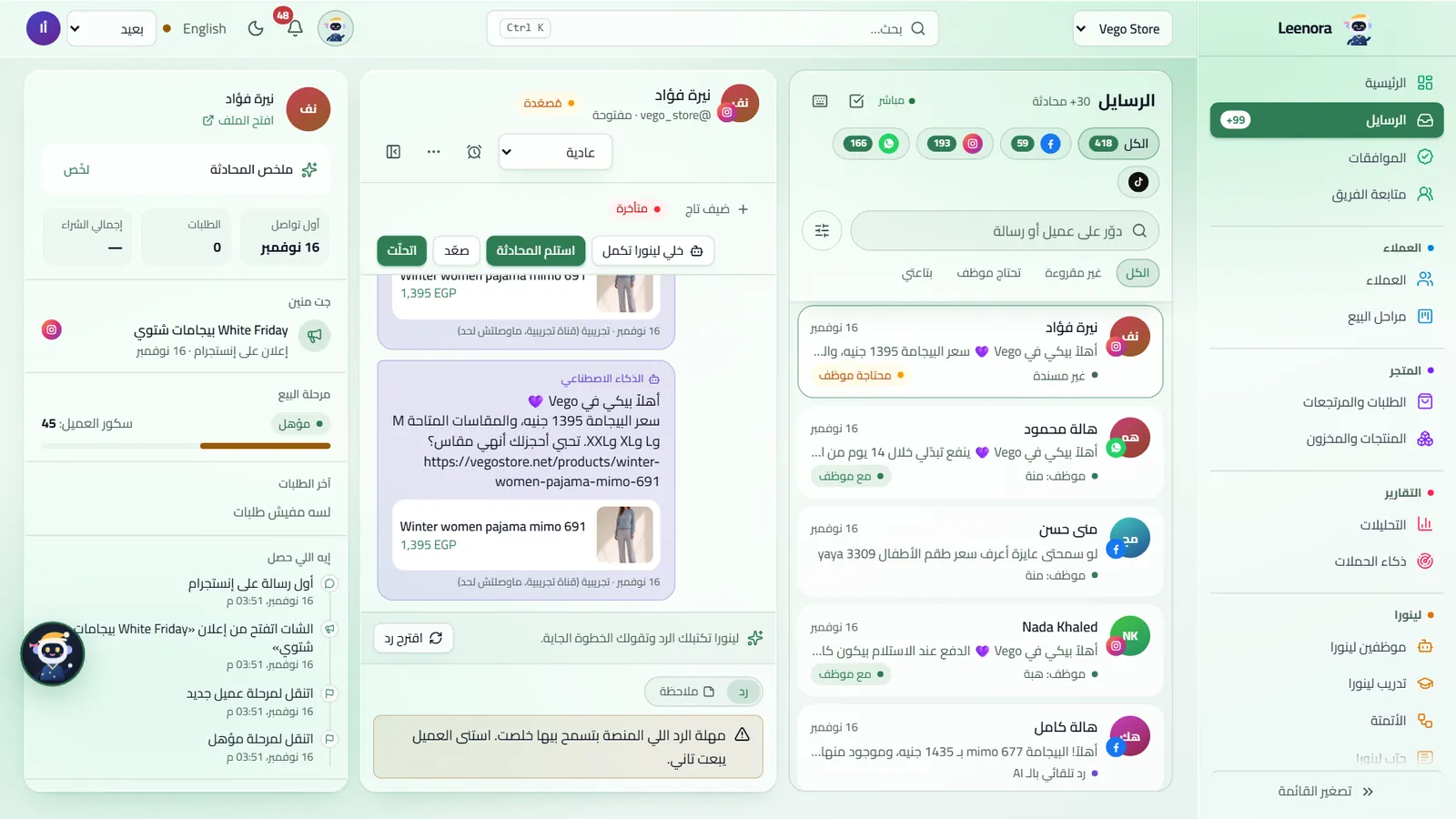
01 / 23A chat with AI replies beside the customer panel

Here I opened one chat. The purple bubbles in the middle are the AI's replies, and the panel on the left shows the customer's stage and history before anyone types.

NOVA points at the screen
A chat with AI replies beside the customer panel
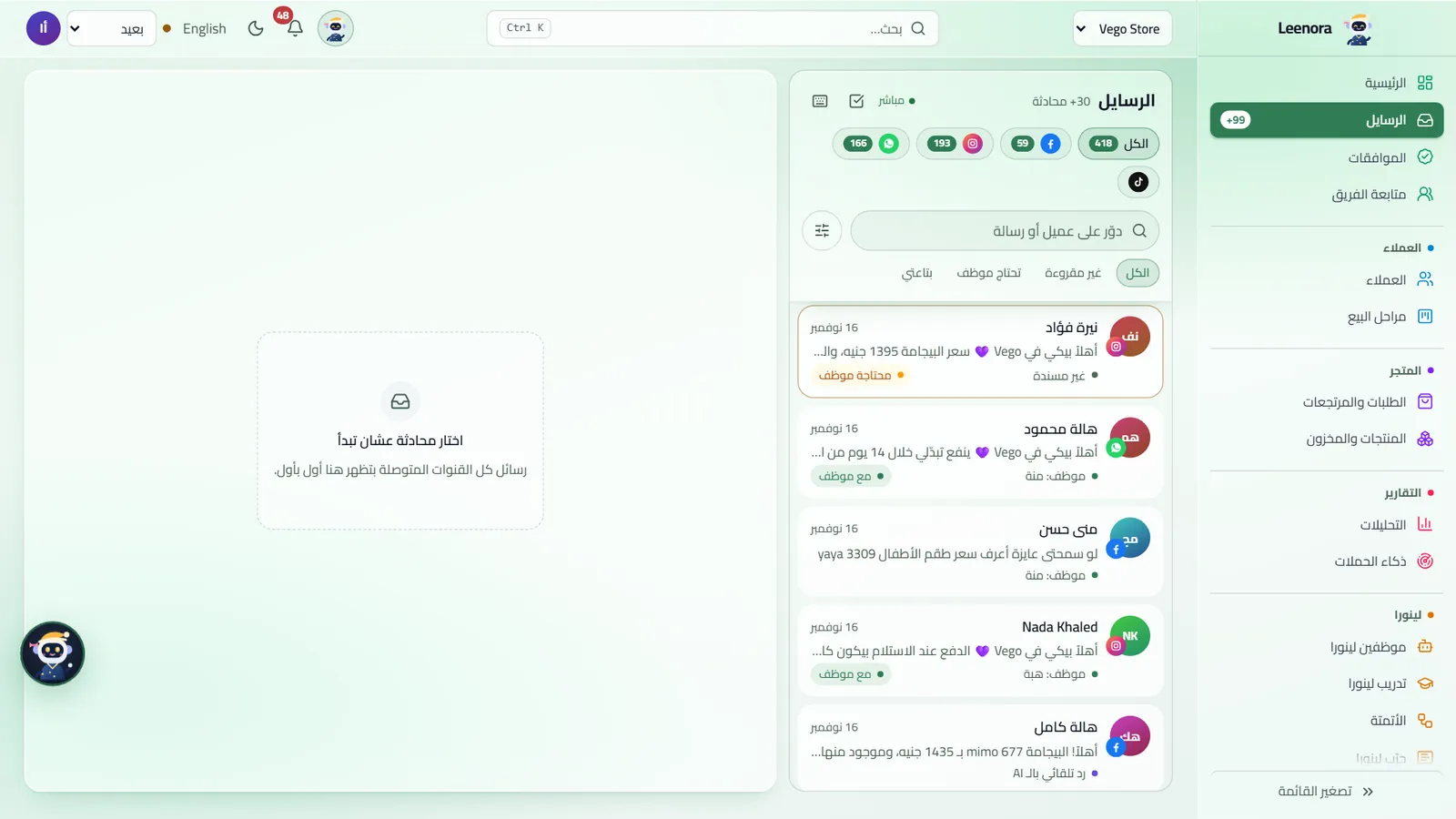
02 / 23One inbox with a counter for each channel

This is the inbox. Look at the row of counters above the list on the right: every channel lands in this one list, so your team stops switching apps.
NOVA points at the screen
One inbox with a counter for each channel
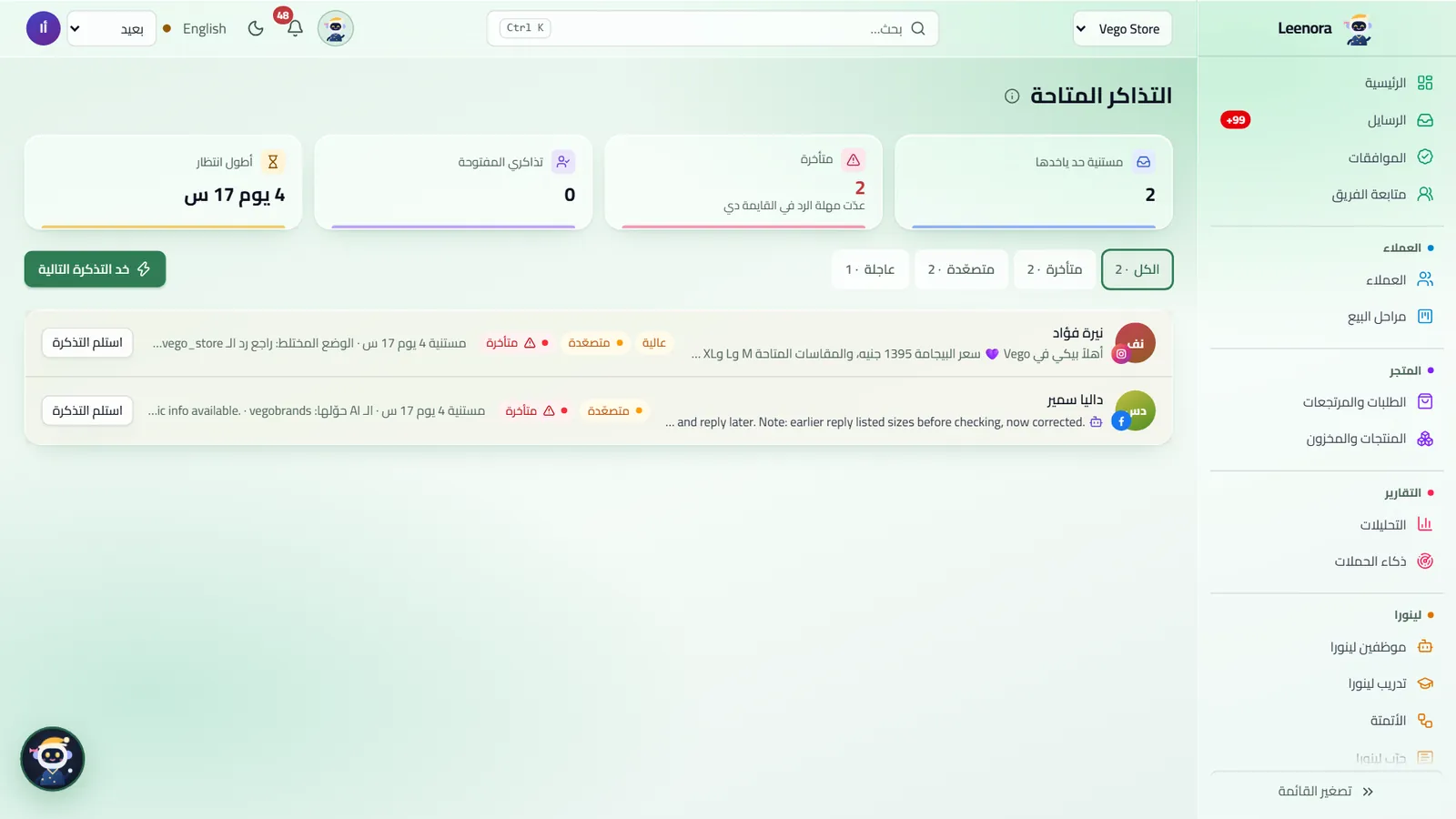
03 / 23Tickets waiting for a person, with one claim button

These tickets are waiting for a person. The green button on the left takes the next one, and only one employee gets it, so no customer gets two answers.
NOVA points at the screen
Tickets waiting for a person, with one claim button
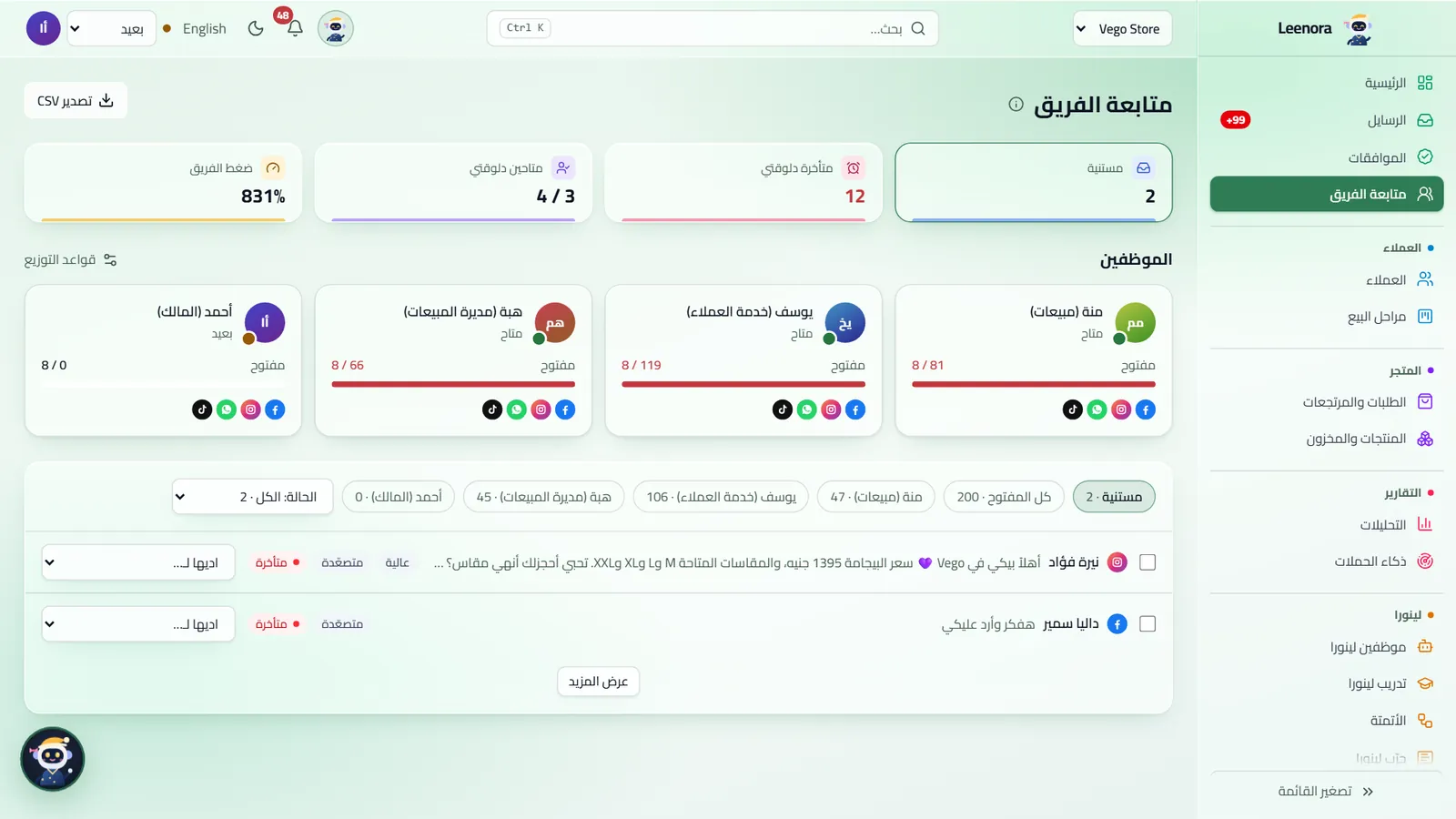
04 / 23Team queue: each person's load and open tickets

I show this one to managers. Each card in the middle row is one employee with a load bar, and the list underneath moves a ticket to someone else.
NOVA points at the screen
Team queue: each person's load and open tickets
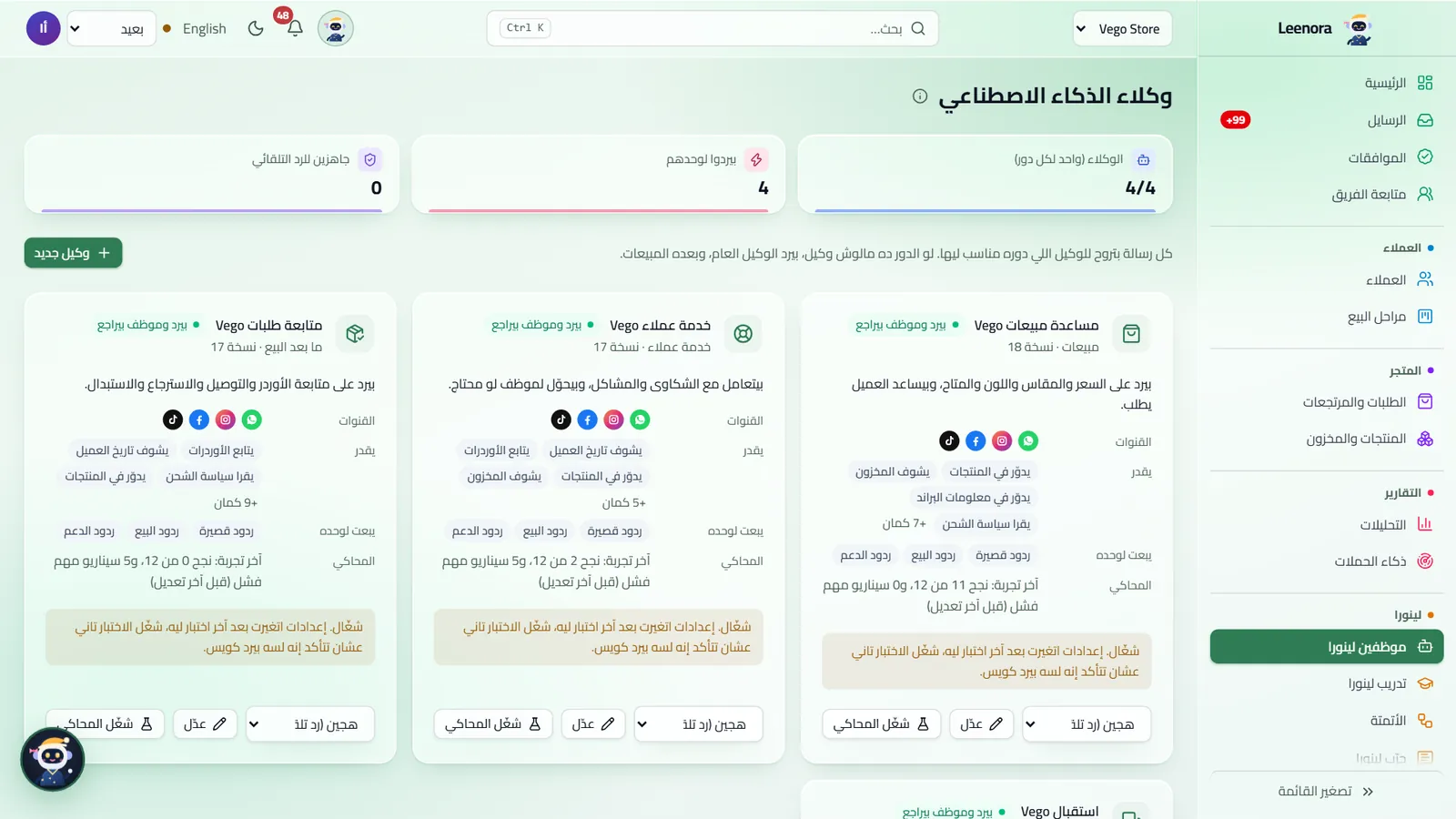
05 / 23AI agents, each asking for a new test run

Each card is one AI agent with its job, channels and tools. Read the yellow note on every card: it needs a new test run before replying alone.
NOVA points at the screen
AI agents, each asking for a new test run
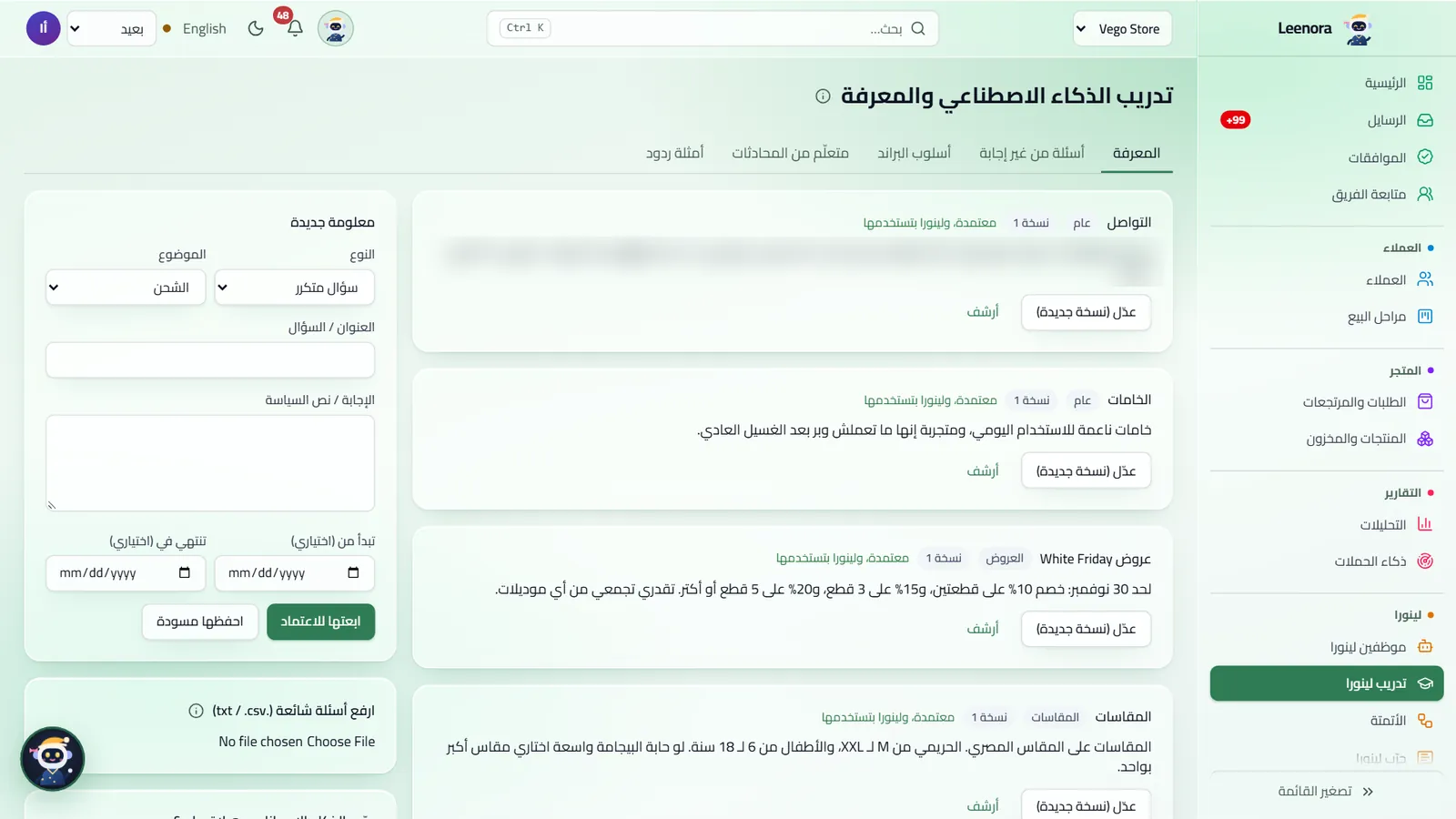
06 / 23Approved knowledge entries the AI may use

Everything the AI may say lives here. Each entry has a green approved label and a version number, and the form on the left adds a new one.
NOVA points at the screen
Approved knowledge entries the AI may use
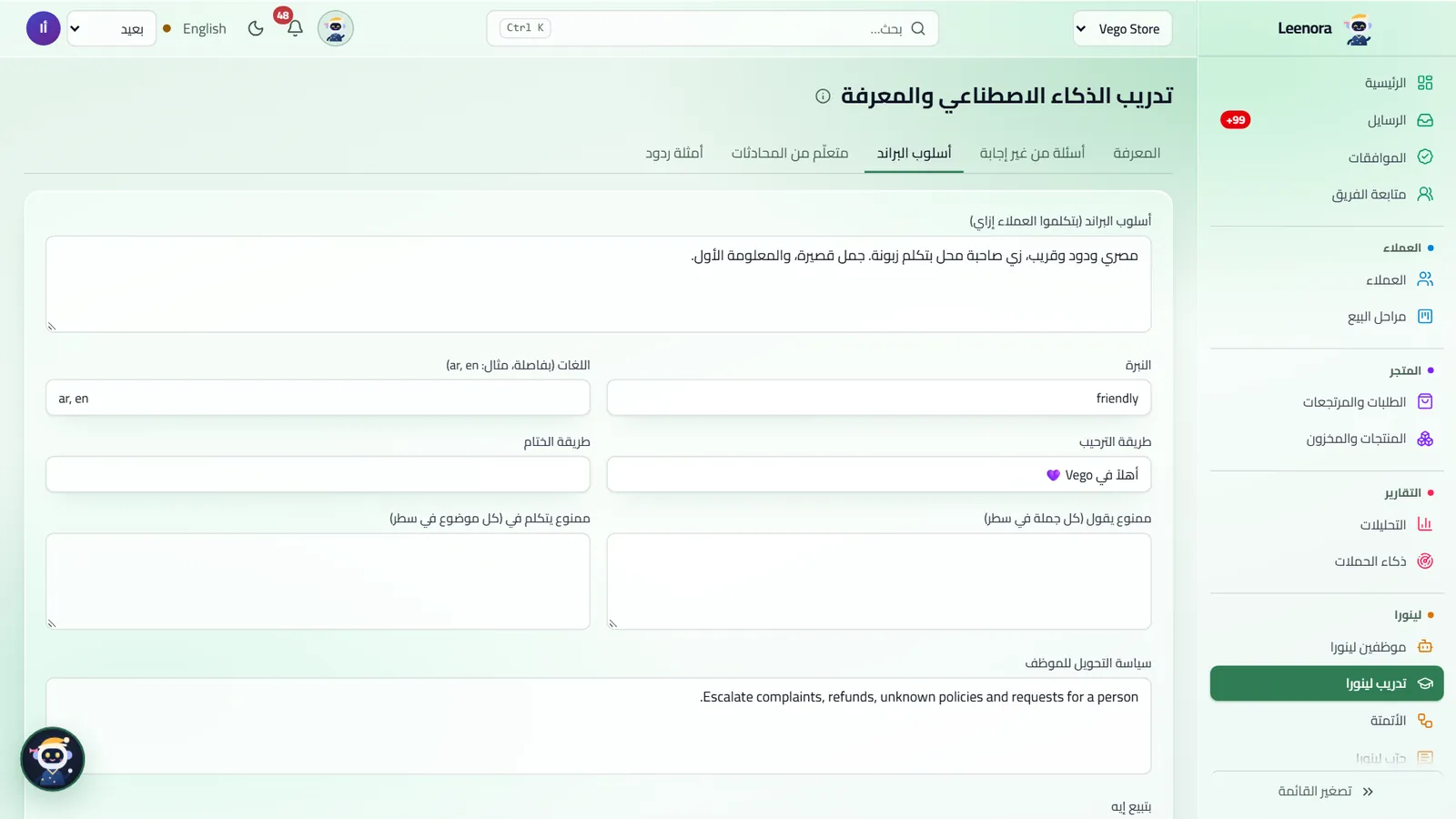
07 / 23Brand voice: tone, greeting and hand-over policy

On the brand voice tab, the top box describes how the brand talks. The wide box at the bottom says what must go to a person.
NOVA points at the screen
Brand voice: tone, greeting and hand-over policy
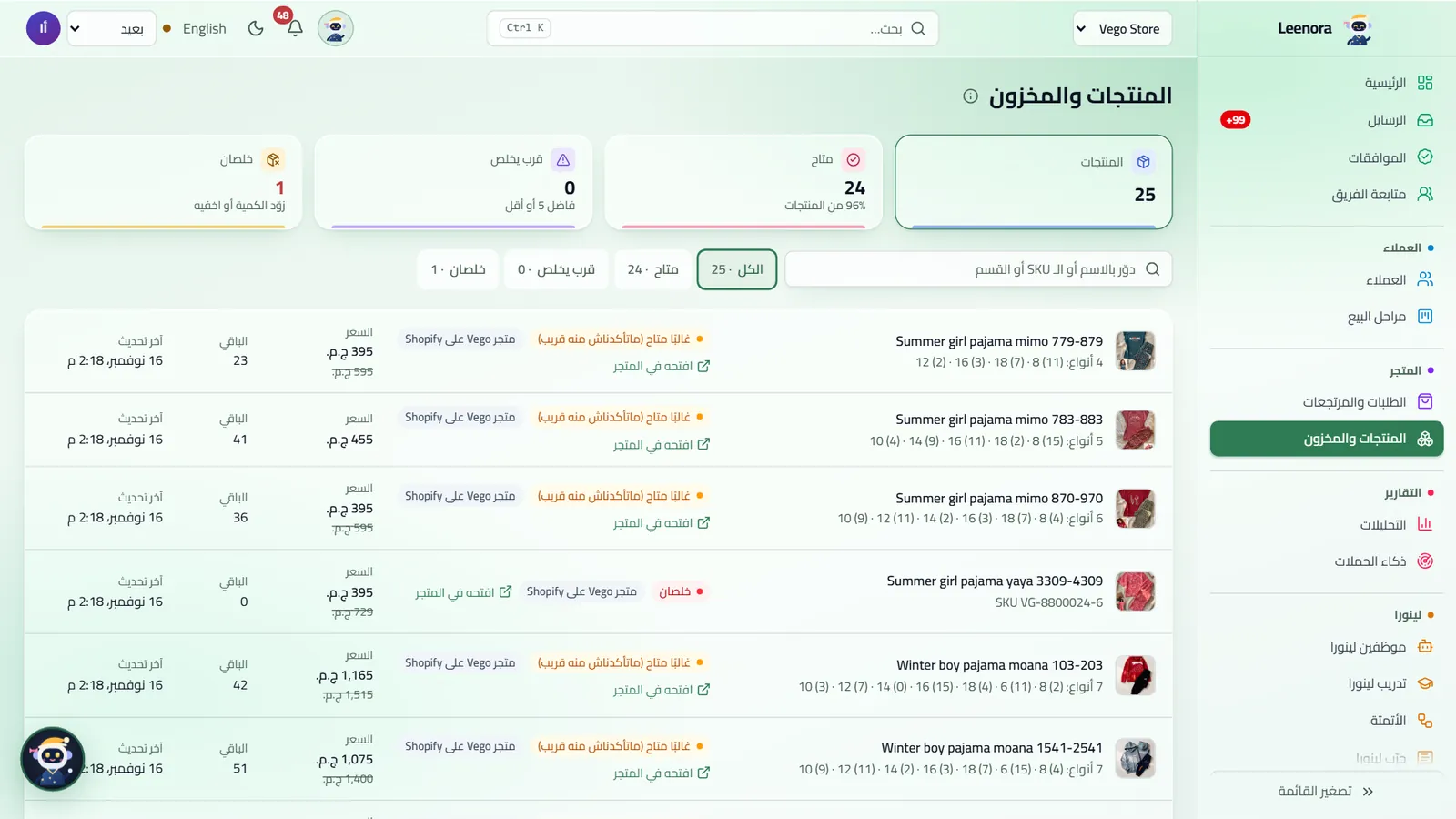
08 / 23Products and stock with stock-level filters

Products and stock. The four counters on top count what is available, running low or out, and each row shows the quantity left, so nobody promises a sold-out size.
NOVA points at the screen
Products and stock with stock-level filters
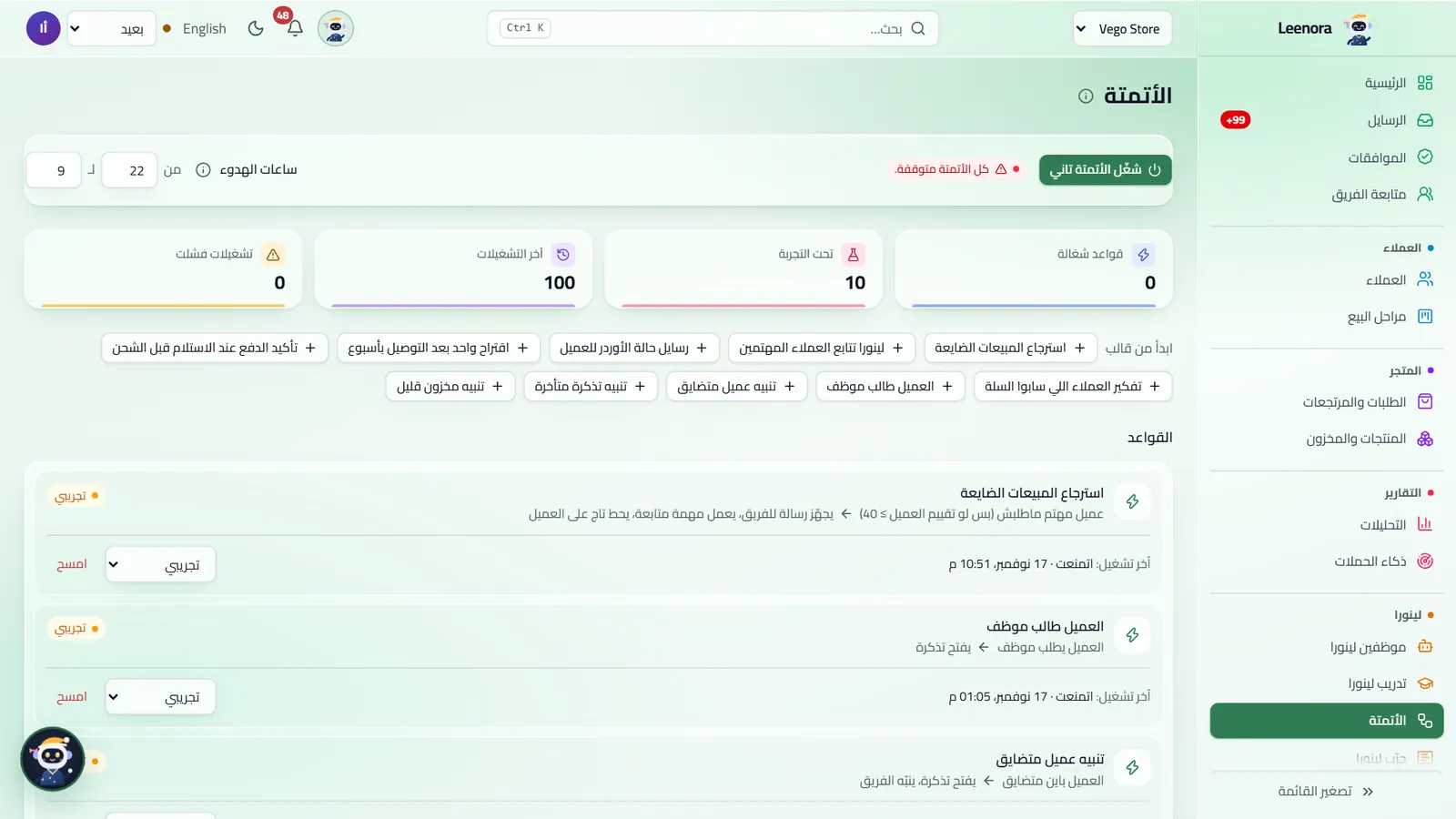
09 / 23Automation rules, quiet hours and the emergency stop

Start with the top bar: quiet hours on the left, the stop switch on the right. Automations are stopped in this shot, so every rule below is paused.
NOVA points at the screen
Automation rules, quiet hours and the emergency stop
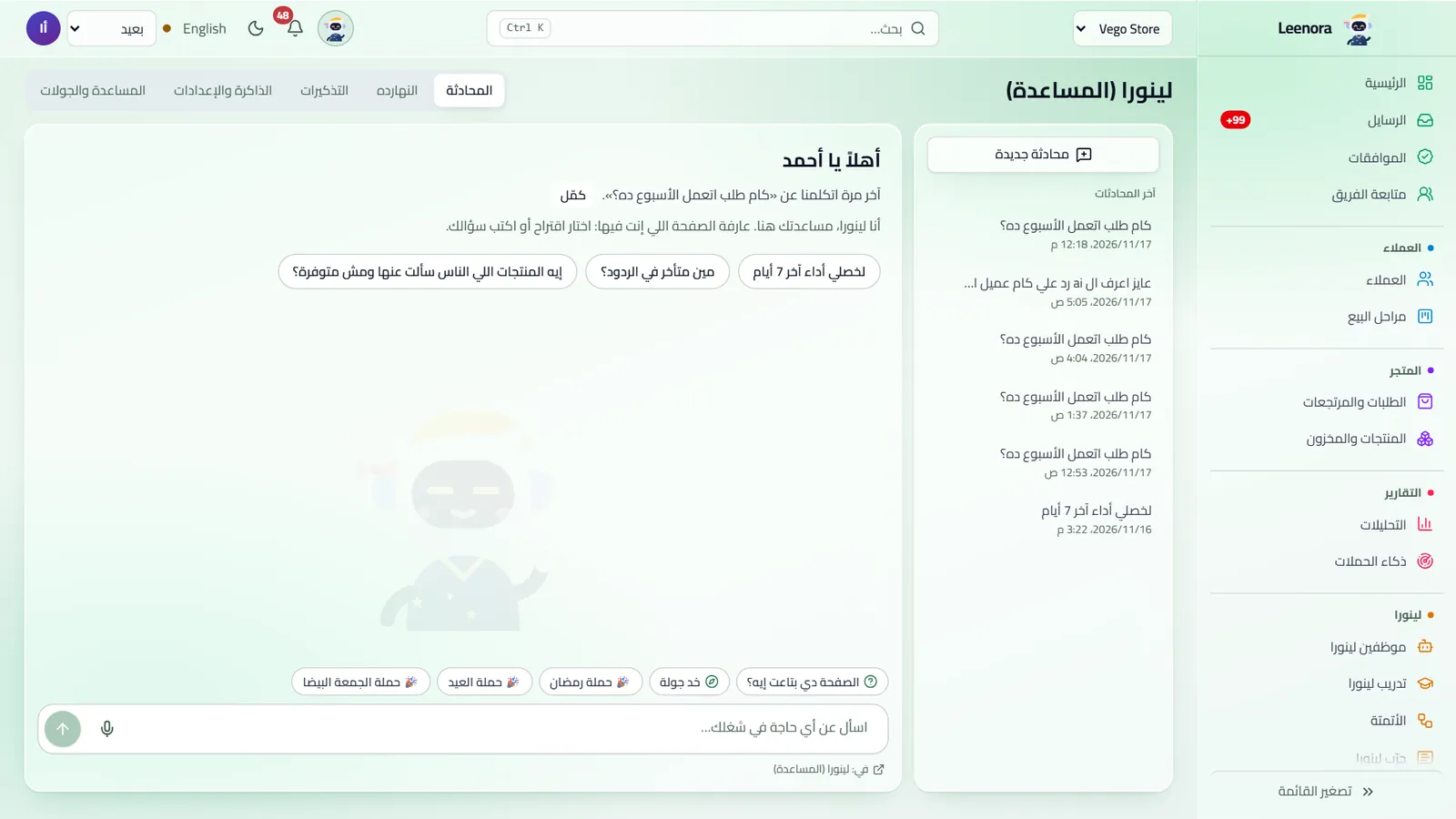
10 / 23The Leenora assistant with suggested questions

Meet the in-product assistant. The rounded chips in the middle are questions it suggests, and earlier chats sit in the column on the right, so staff ask instead of searching.
NOVA points at the screen
The Leenora assistant with suggested questions
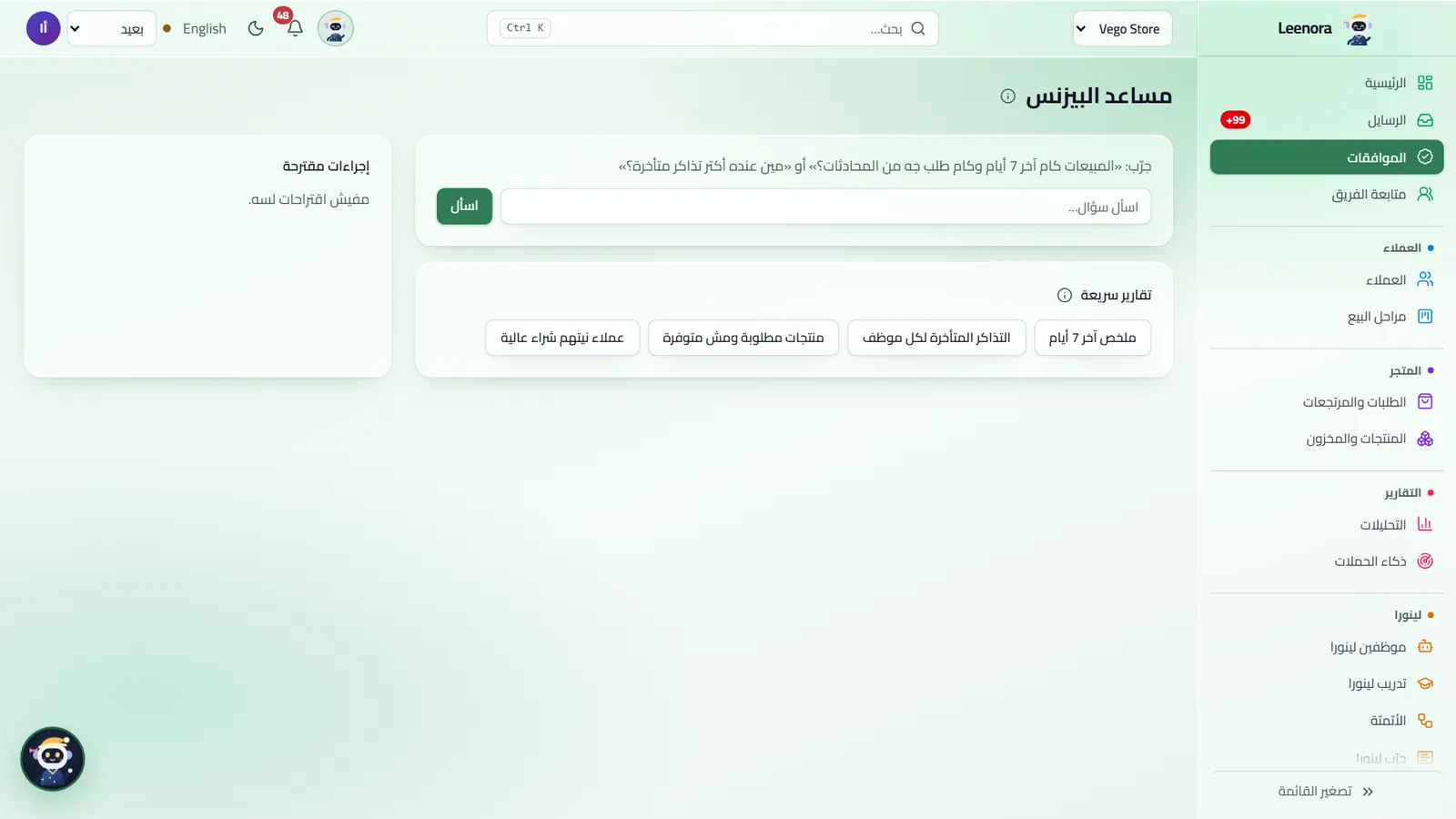
11 / 23Owner copilot: a question box and quick reports

The owner copilot is one question box at the top with four quick report buttons under it. The panel on the left is empty because nothing has been asked yet.
NOVA points at the screen
Owner copilot: a question box and quick reports
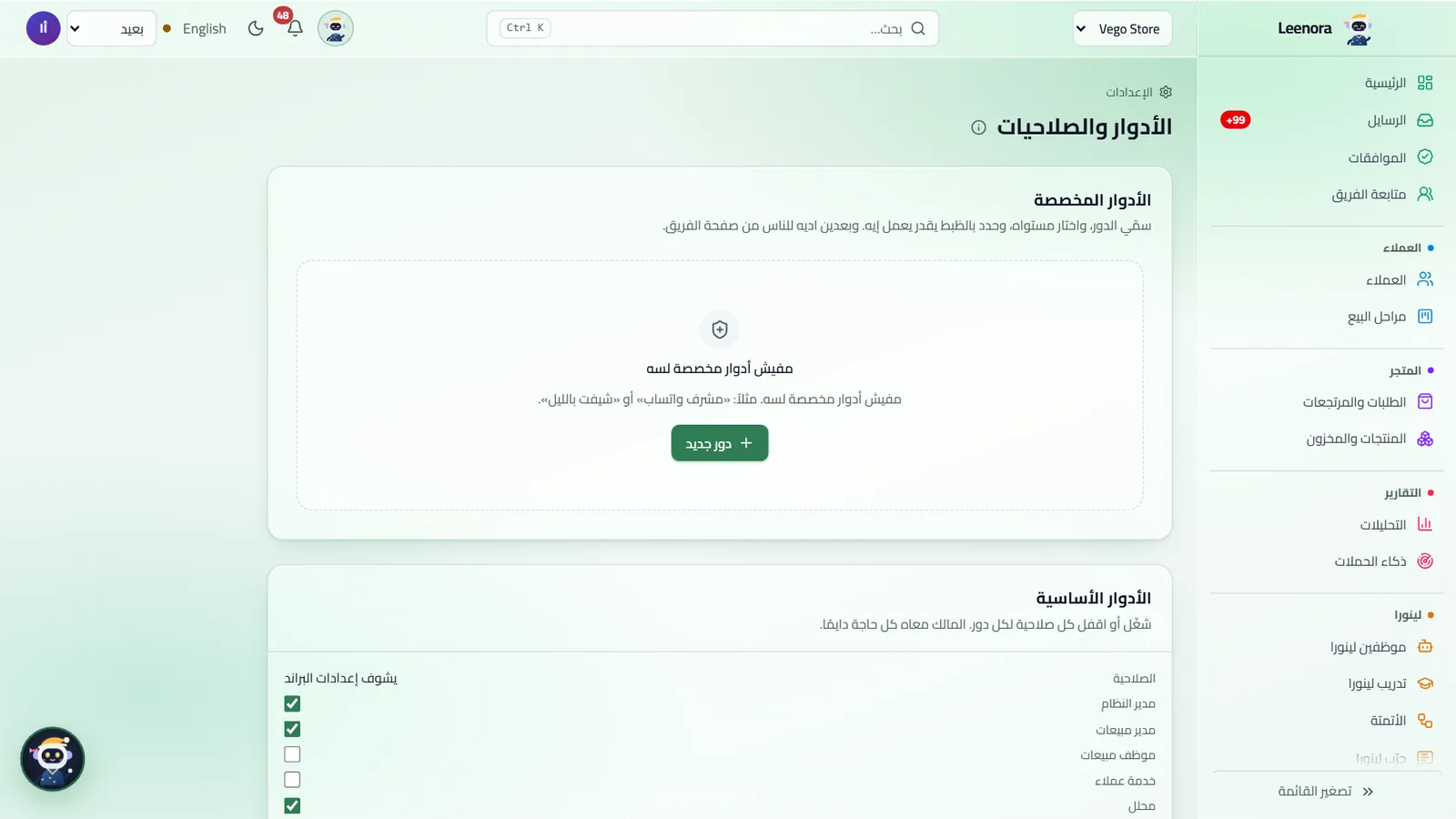
12 / 23Custom roles and the permission matrix

The green button in the upper card creates a custom role, and the checkboxes below turn each permission on or off, so people see only what their job needs.
NOVA points at the screen
Custom roles and the permission matrix
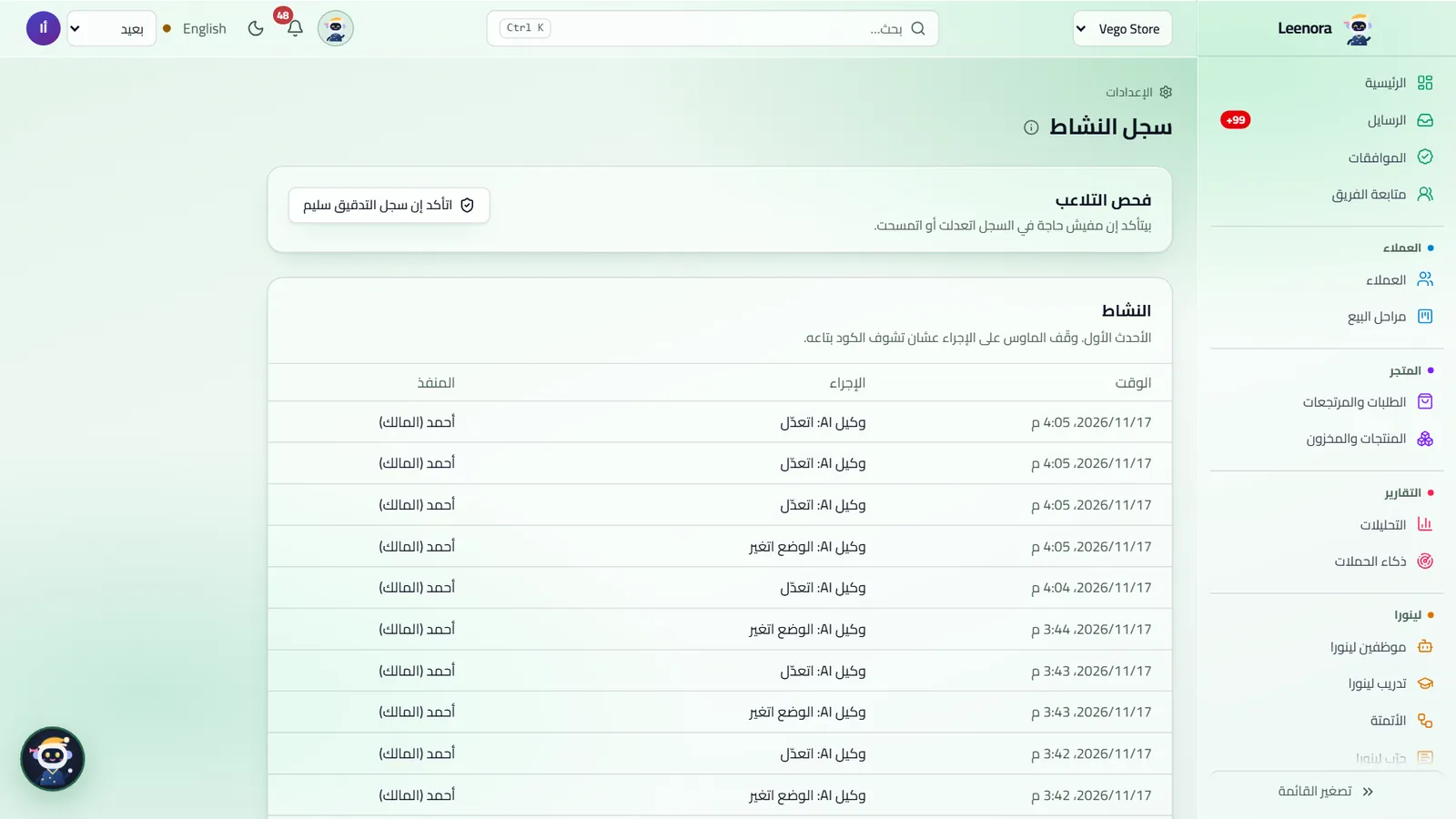
13 / 23Activity log with its integrity check

Every row in this table is who did what, and when. The button in the top card checks that no record was changed or deleted, which is your proof.
NOVA points at the screen
Activity log with its integrity check
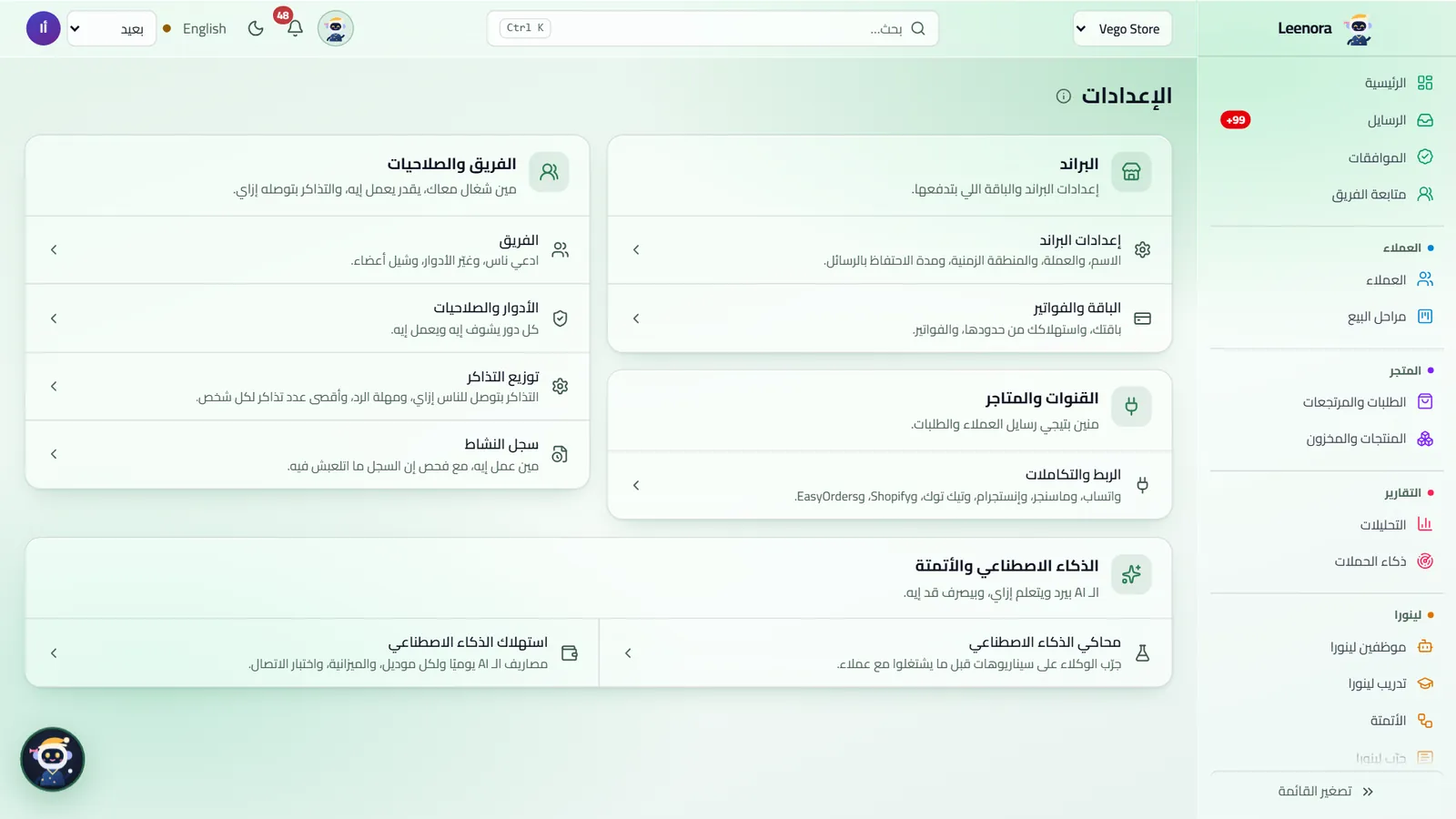
14 / 23All settings grouped in one page

All settings sit on this one page, grouped into cards: brand, team and permissions, channels and stores, and AI at the bottom. I counted no hidden sub-menus.
NOVA points at the screen
All settings grouped in one page
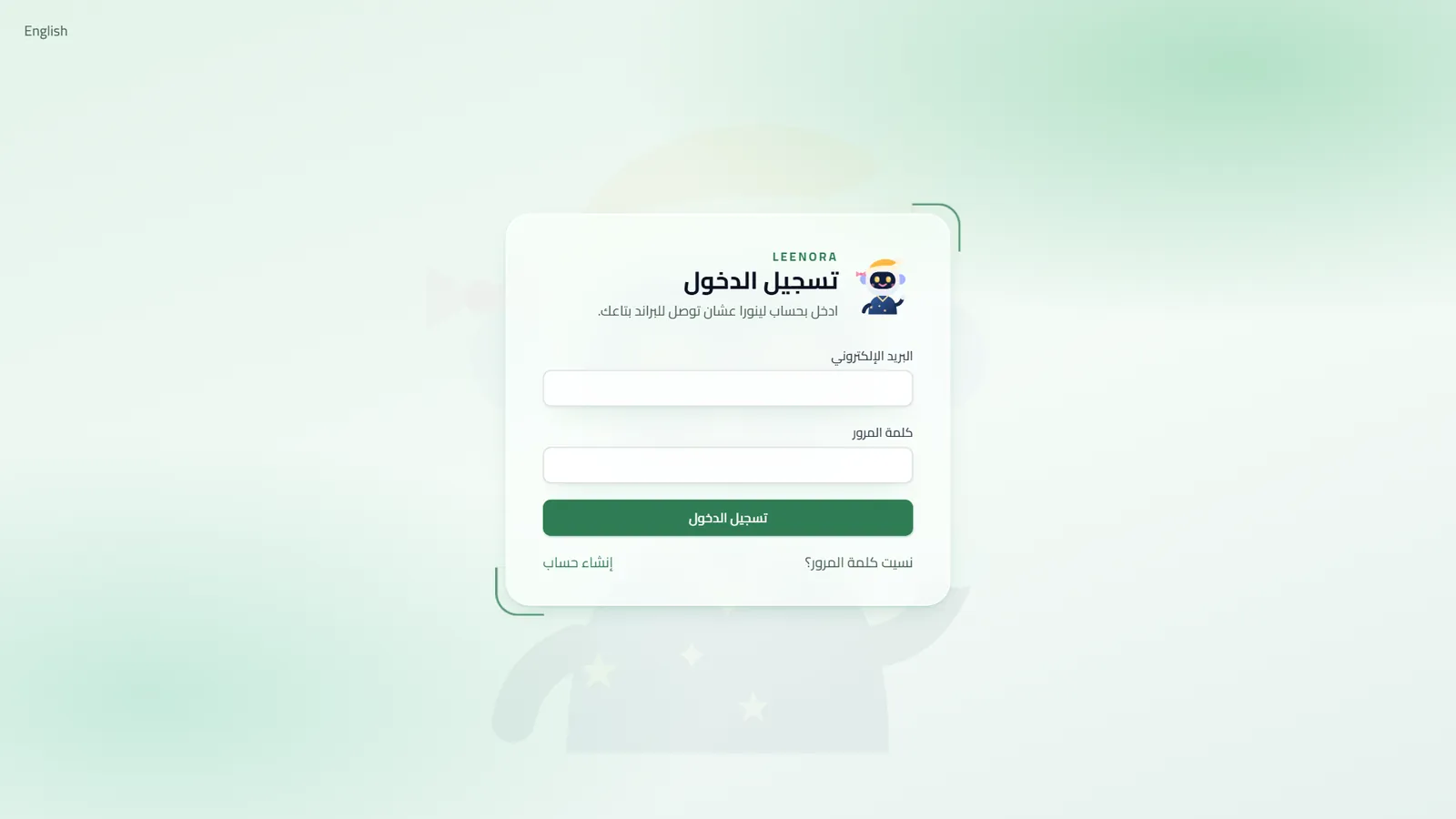
15 / 23Sign-in screen with the assistant mascot

Sign-in is one card: email, password and the green button. The small robot beside the title is the product's assistant, and the English switch is at the top left.
NOVA points at the screen
Sign-in screen with the assistant mascot
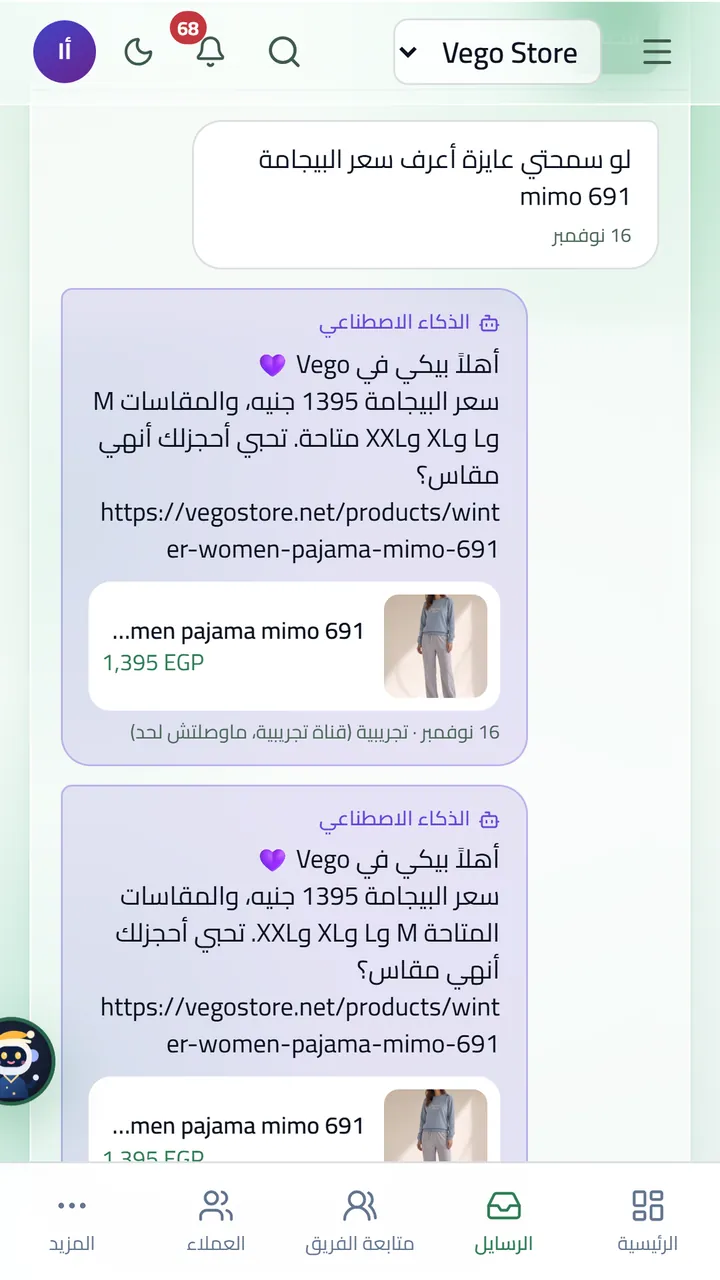
16 / 23AI replies with a product card

A customer asks about a product in the white bubble at the top. The purple bubbles are the AI's answers, and the small line under each marks a demo channel.
NOVA points at the screen
AI replies with a product card
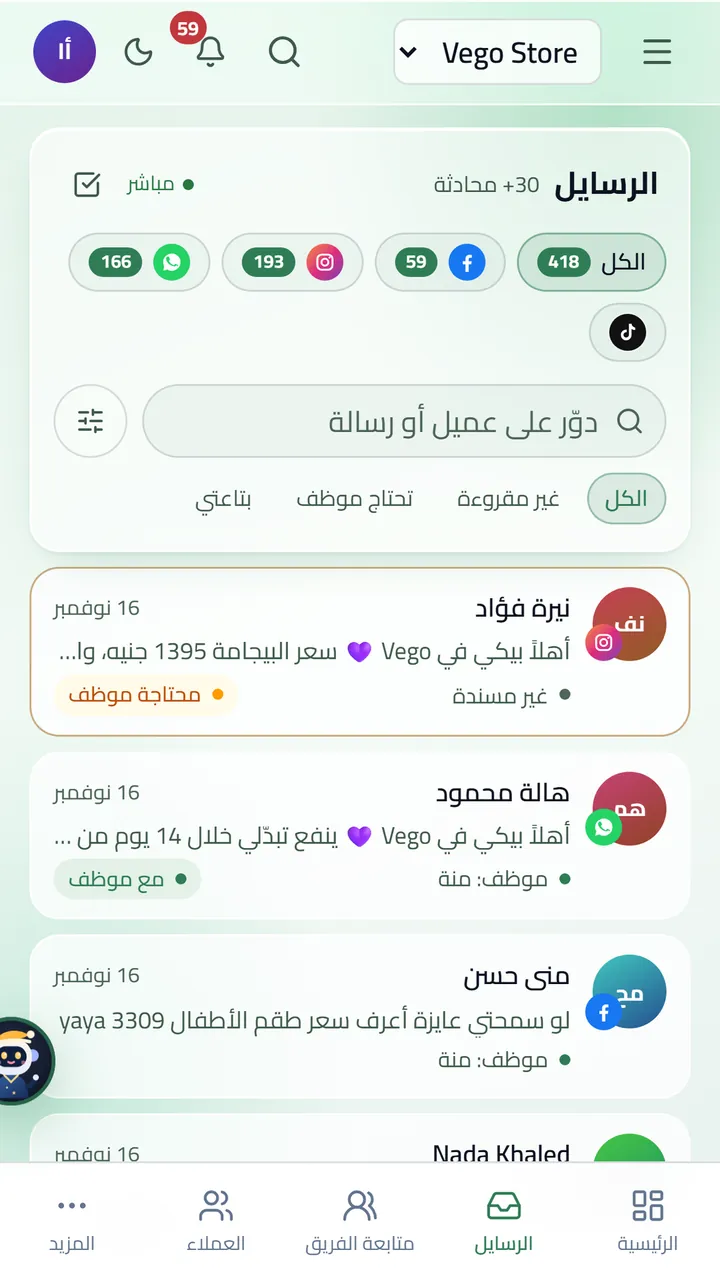
17 / 23The inbox on a phone

The same inbox on a phone. Channel counters stay at the top and the bar at the bottom moves between pages, so staff can answer away from the desk.
NOVA points at the screen
The inbox on a phone
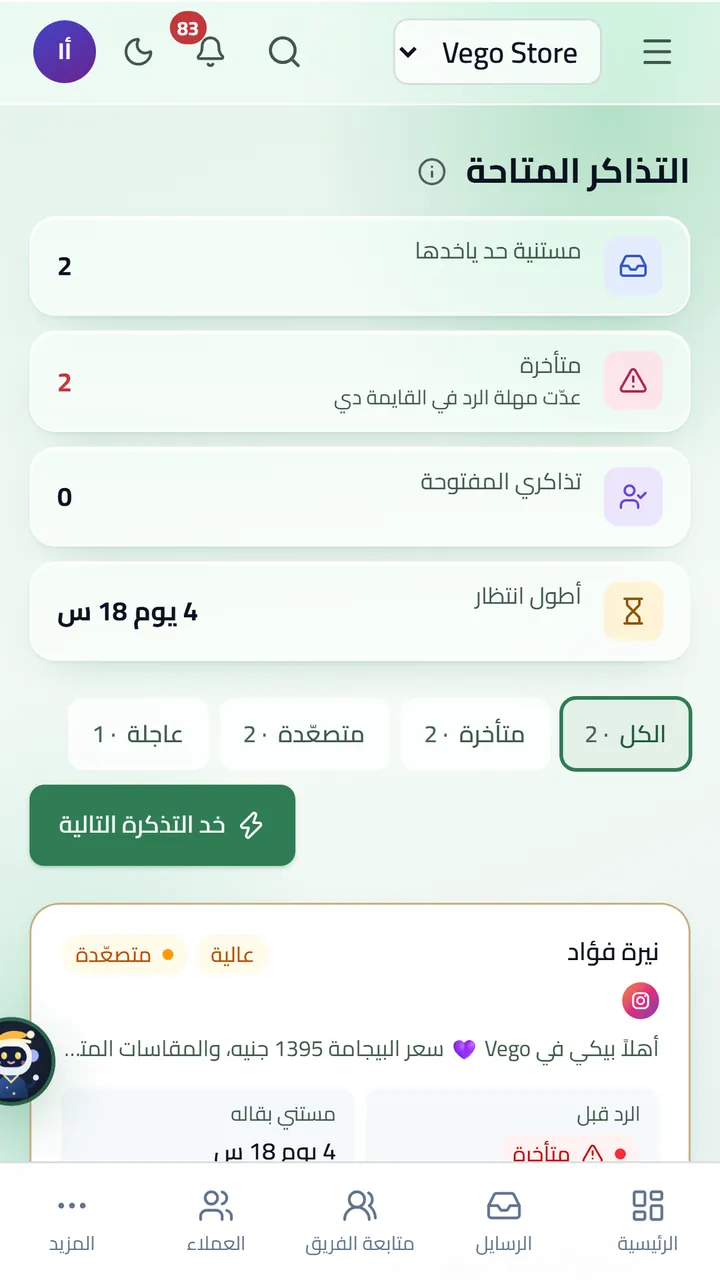
18 / 23Available tickets and the claim button

On a phone the counters stack at the top. The green button in the middle takes the next ticket, and the card under it shows how late the reply is.
NOVA points at the screen
Available tickets and the claim button
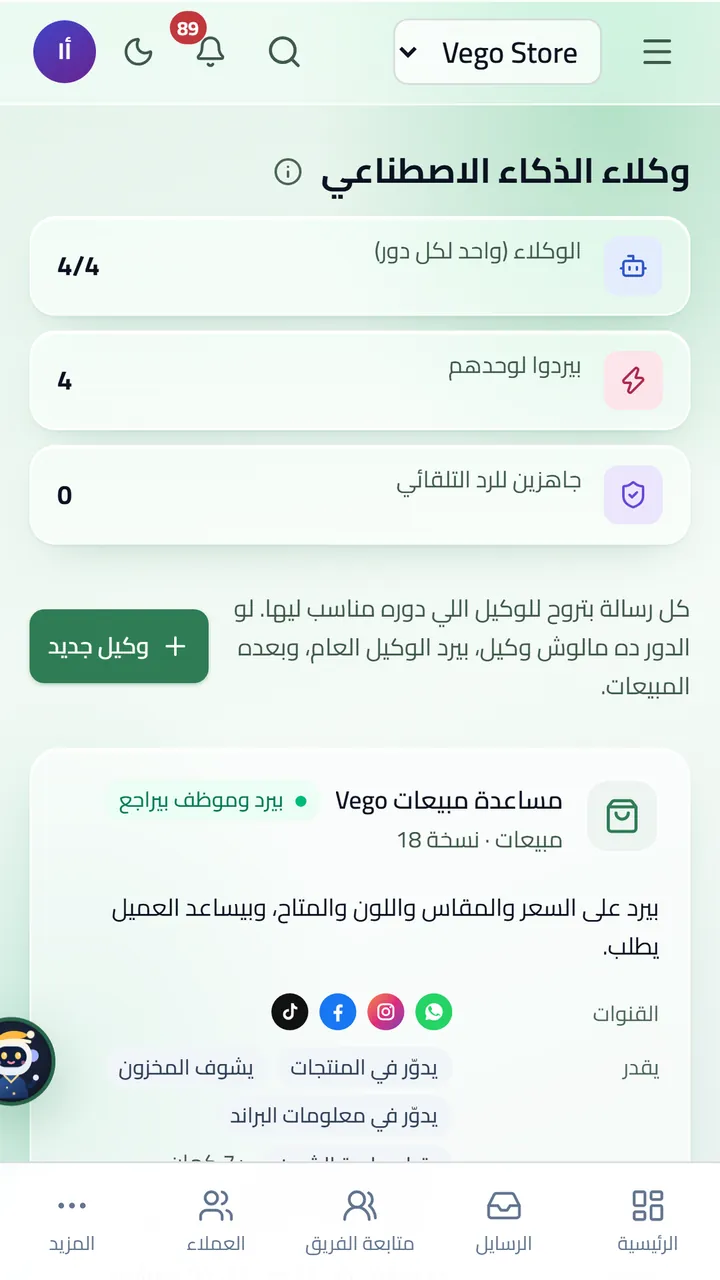
19 / 23AI agents on a phone

Three counters open the agents page. The third one, ready for auto-reply, reads zero here, because no agent has passed a new test run on its current settings.
NOVA points at the screen
AI agents on a phone
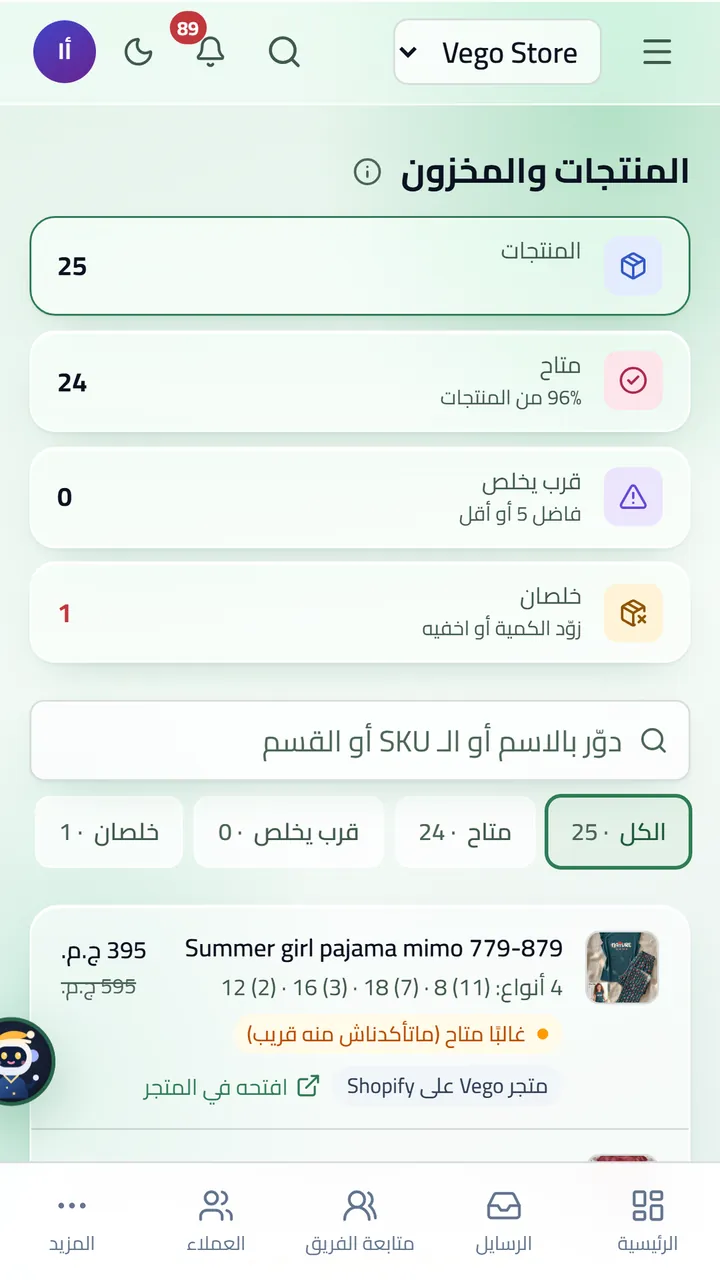
20 / 23Products and stock counters

Stock on a phone. The counters show what is available, low or out, and the four filter buttons above the first product narrow the list with one tap.
NOVA points at the screen
Products and stock counters
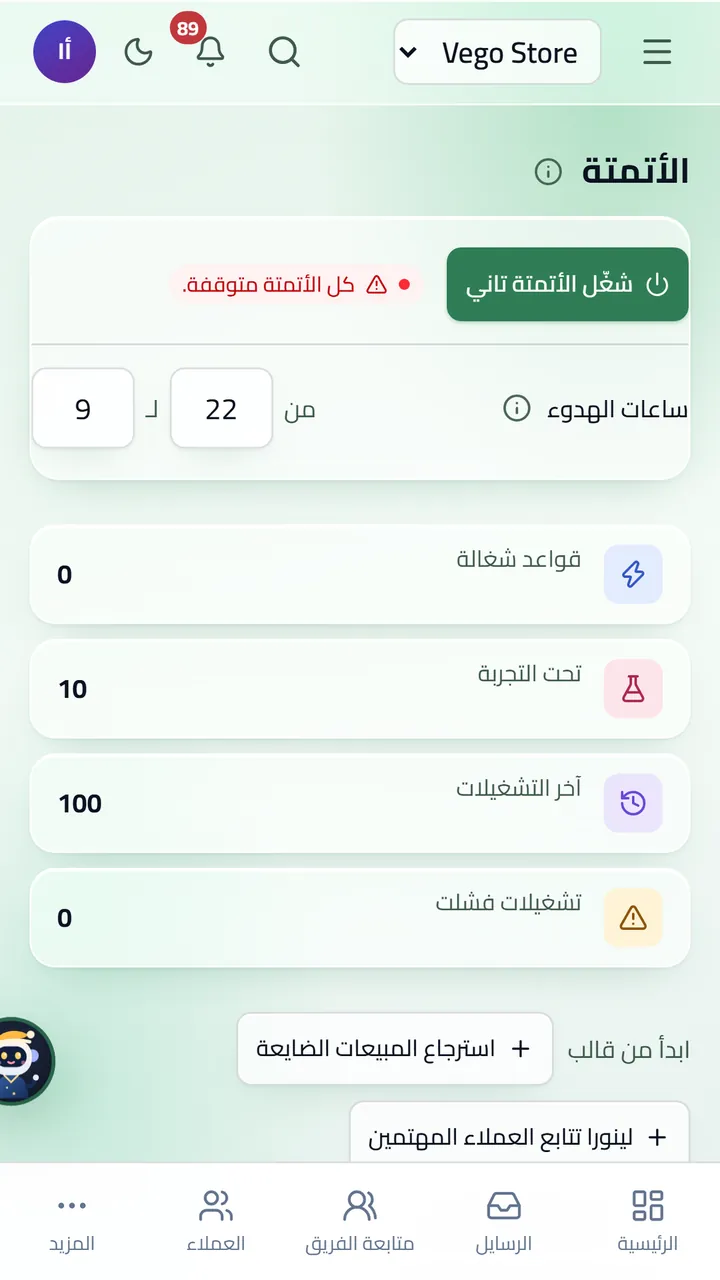
21 / 23Automations with quiet hours on top

The stop switch is the first thing on this page, with quiet hours right under it. If a rule misbehaves, you can halt everything from your phone.
NOVA points at the screen
Automations with quiet hours on top
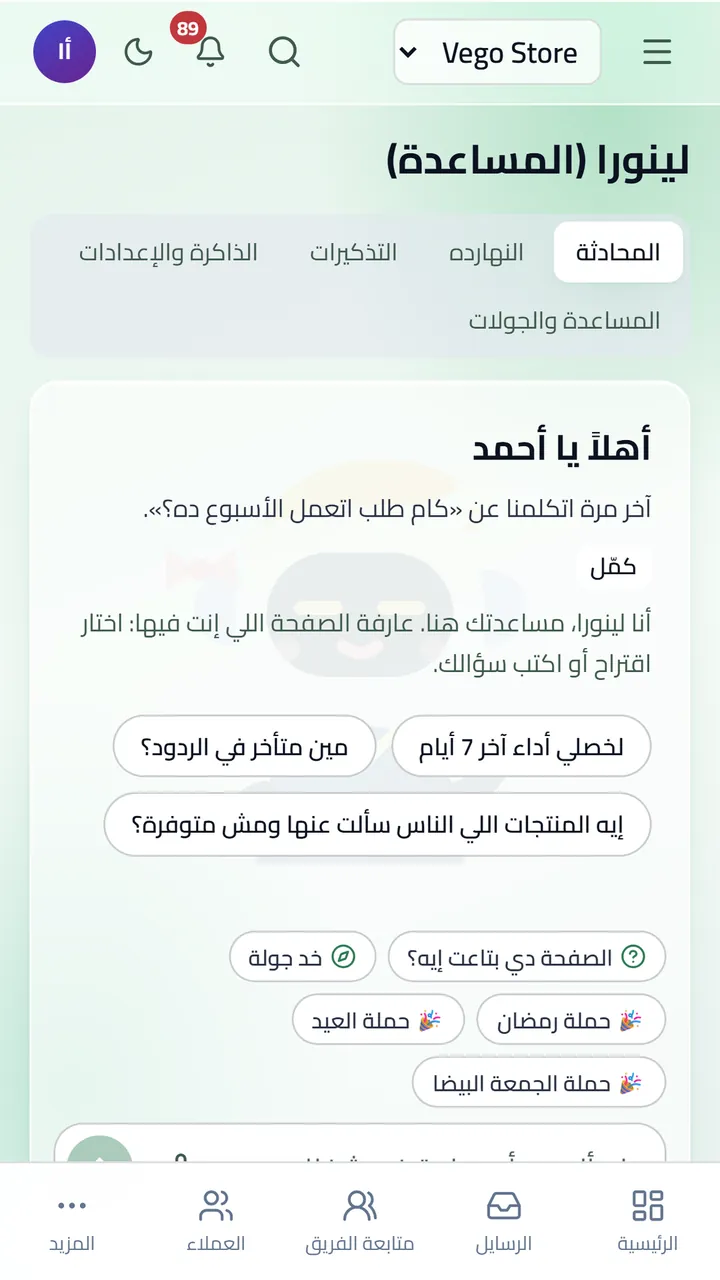
22 / 23The Leenora assistant on a phone

The assistant greets the user by name, then offers ready questions in the rounded chips. The tabs at the top lead to today's list and reminders.
NOVA points at the screen
The Leenora assistant on a phone
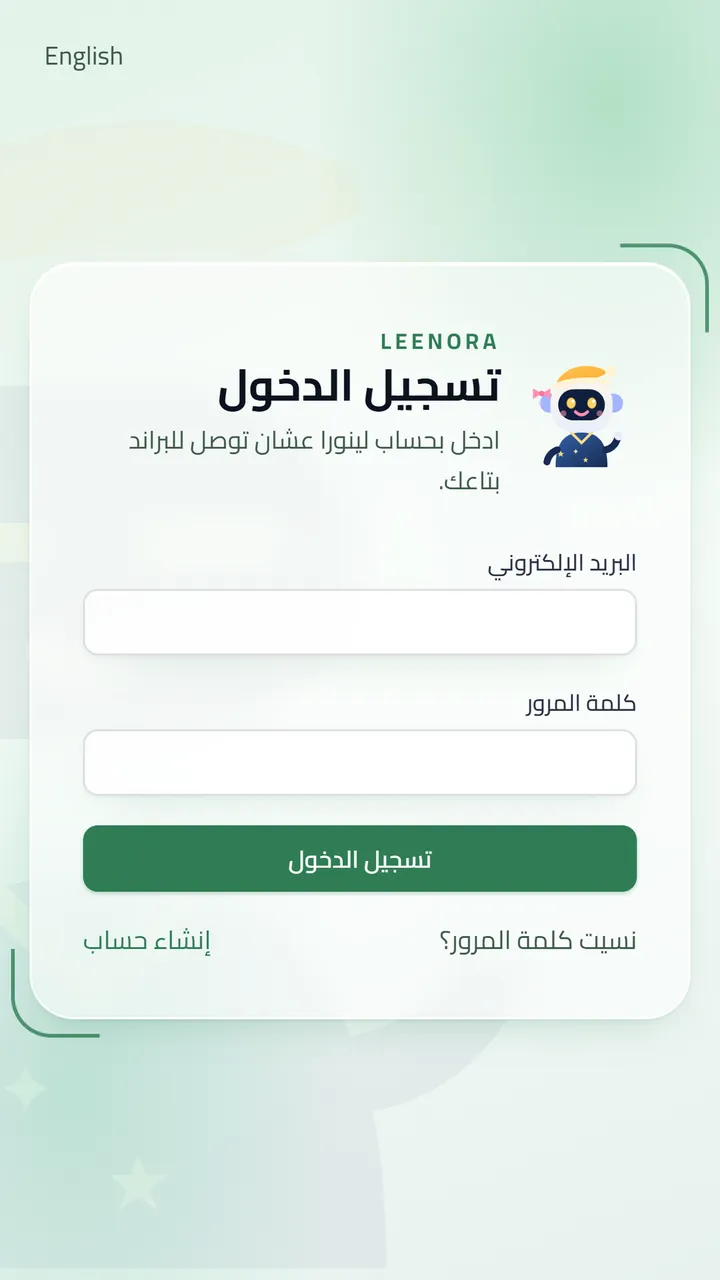
23 / 23Sign-in on a phone

Sign-in fits a phone without scrolling: two fields and the green button. Create account is the link at the bottom left of the card.
NOVA points at the screen
Sign-in on a phone

Who uses it

OwnerOrg adminSales managerSales employeeSupport agentAnalystViewerPlatform super admin

Why it is not off the shelf

What makes it different

01

The AI cannot place an order or send a reply nobody checked. It prepares an order draft that a person confirms, and a second supervisor model reviews each drafted reply against the store's own policies before it goes out.

02

An AI agent cannot be switched to auto-reply until it passes a test run. The simulator must score 80% or more with no critical failure, and any change needs a new run.

03

The owner sees why, not only how many. The system reads conversations that went quiet, reports why the sale stopped and which products customers complained about, and collects the questions the AI could not answer.

Ready for your business

LEENORA Sales is a product you can have

For any online brand that sells through chat. LEENORA sets it up and customises it for each brand, and it is in testing now.

  • We show it to you working
  • We set it up with your data, staff and branches
  • We change screens, reports and roles to fit how you work
  • We train your team and stay for support
NOVA

Want something like this?
Let's talk.

Talk to us on WhatsApp